How to Send Articles to Kindle Easily

You find a great article online, open it in a tab, promise yourself you will read it later, and then forget about it for three days.
That is the real reason people want to send articles to Kindle. It is not just about convenience. It is about turning messy browser reading into calm, focused reading on a screen built for long sessions. eReadly is designed for exactly that workflow: click from an article page, extract the content, convert it, and deliver it to your e-reader. It also strips away clutter like ads, sidebars, and cookie banners so what arrives is clean reading content.
If you read a lot of essays, blog posts, features, newsletters, or research-heavy pieces online, this is one of the easiest upgrades you can make to your reading life.
Why reading articles on Kindle feels better than reading in a browser
Browsers are great for discovering things. They are much worse for finishing them.
When you read in a browser, you are competing with tabs, notifications, sidebars, embedded media, and the general feeling that you should be doing something else. Kindle changes that. It gives the article its own space.
That matters more than people think. Long-form reading feels easier when the screen is quiet and the interface is not constantly asking for your attention. eReadly’s features page leans into this exact idea, describing the product as built for people who discover great writing online and want to read it properly on a screen that does not hurt their eyes.
For many readers, the shift looks like this:
- browser for discovery
- Kindle for actual reading
- fewer open tabs
- fewer half-finished articles
- more intentional reading time
What kinds of articles work best on Kindle?
The best candidates are text-first pieces where the value is mainly in the writing.
These usually work well:
- long-form essays
- magazine features
- blog posts
- interviews
- opinion pieces
- explainers
- research summaries
- newsletter-style articles
These tend to work less well:
- highly interactive pages
- dashboards and tools
- pages that depend on animations
- layouts where images matter more than text
- very short updates you could read in 20 seconds anyway
A simple test helps: if you would enjoy printing it out and reading it with a coffee, it will probably feel good on Kindle too.
Ways to send articles to Kindle
There are three common approaches.
1. Browser extension
This is the easiest option for most people.
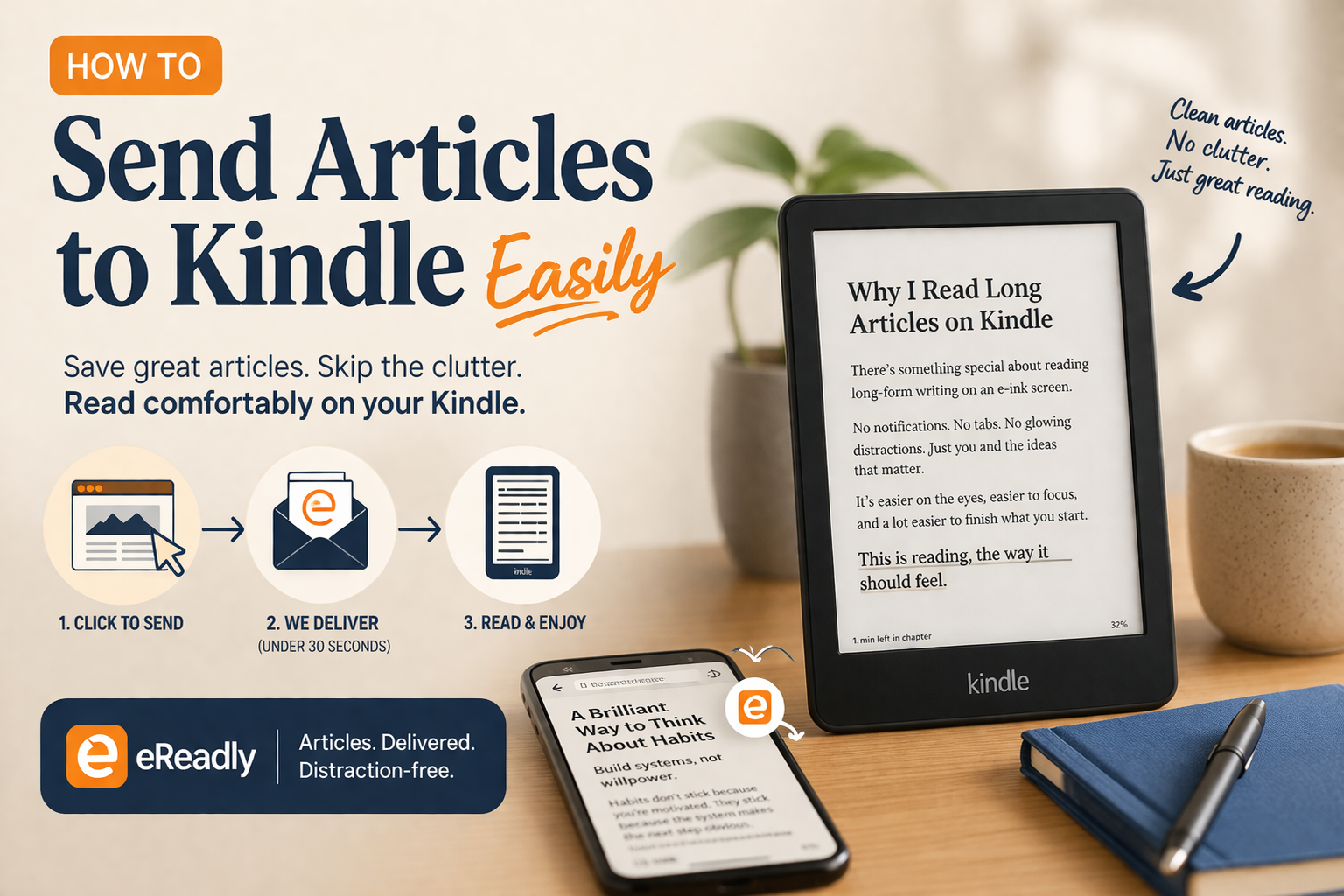
You are already on the article page, so the best workflow is the one with the fewest steps. eReadly’s one-click send is built for that: click the icon on any article, and the content is extracted, converted, and delivered without leaving the page.
This is best for people who read online every day and want the smoothest possible habit.
2. Email-based sending
Some Kindle users rely on email workflows. That can work, especially for files and occasional sends, but it is usually more manual for web articles.
It is useful when:
- you only send things occasionally
- you already have the file saved
- you want a simple backup method
3. Web app or batch sending
This works well when you collect links first and send them later.
eReadly supports bulk import, letting you paste up to 30 URLs at once and send them in a single action. That makes it useful for weekend reading lists, research sessions, or those moments when you realize your tabs have turned into a small museum of unfinished intentions.
How to send articles to Kindle with eReadly
Here is the simplest workflow.
Step 1: Open the article you want to read
Start with the actual article page, not the homepage or category page.
Step 2: Click the eReadly icon
eReadly’s one-click send works directly from the article page. According to the features page, it extracts the content, converts it, and delivers it without you leaving the page.
Step 3: Choose your target device
If you use more than one reader, eReadly lets you add multiple devices and switch target devices from the popup. It supports Kindle, Kobo, PocketBook, reMarkable, Tolino, Onyx Boox, and other EPUB readers via email delivery.
Step 4: Wait for delivery
eReadly says delivery happens in under 30 seconds from browser click to e-reader delivery.
Step 5: Read later on your Kindle
Now the article is off your browser and onto a device that is actually pleasant to read on.
That is the part people often underestimate. The real win is not just sending the article. It is removing friction between “I want to read this” and “I actually read it.”
Tips for cleaner formatting and better readability
A few small habits make the experience much better.
Send the article page, not the site homepage
This sounds obvious, but it is the easiest mistake to make when you are moving quickly.
Prefer text-first pages
Clean article layouts usually convert best. If a page depends on interactive charts or fancy visuals, do not expect magic.
Batch your reading
Instead of interrupting yourself every time you find something interesting, save several good pieces and read them later in one dedicated session. If you already have a list, bulk import is much faster than doing one-by-one sends. eReadly supports up to 30 URLs in one batch.
Use RSS for repeat sources
If you regularly follow the same blogs or publications, manual sending gets old. eReadly supports RSS subscriptions that automatically compile articles into daily or weekly digests sent to your device.
Re-send good pieces instead of hunting for them again
This is a small but useful feature for serious readers. eReadly keeps a full send history, so you can retry failed deliveries, resend favorites, or clean up old jobs.
Common issues and how to fix them
The formatting looks odd
Usually the source page is the problem, not the idea of sending to Kindle. Very interactive or media-heavy pages are harder to convert cleanly. Text-heavy articles almost always work better.
I sent it to the wrong device
If you use multiple readers, check the selected target before sending. eReadly supports multiple devices and lets you switch the destination from the popup.
I have too many links to send one by one
Use bulk import. This is one of those features that becomes more valuable the more you read. eReadly lets you paste up to 30 URLs in one action.
I want this to happen automatically
RSS is the better workflow. Instead of manually saving every article, subscribe to the feed and let your reading digest arrive on schedule. eReadly offers daily or weekly RSS digests.
I also want to send PDFs or ebooks
That is a slightly different use case, but eReadly supports direct upload of EPUB, MOBI, PDF, and comic files too, so the workflow can cover more than just web articles.
Why this habit actually sticks
A lot of read-it-later systems fail because they make saving too easy and reading too abstract. You end up collecting links, not finishing them.
Sending articles to Kindle works better because it changes the environment. The article leaves the browser, leaves the tab pile, and lands in a place where reading is the default activity.
That is why this method tends to feel less like “content management” and more like actual reading.
Final thoughts
If you want a better way to send articles to Kindle, the goal is not to build some elaborate productivity system. The goal is to make reading easier than scrolling.
That is what makes eReadly appealing. It offers one-click article sending, clean EPUB output, delivery in under 30 seconds, support for multiple devices, bulk URL import, RSS digests, file upload, and full send history. More importantly, it helps move good writing out of the browser and onto a screen where you are far more likely to actually read it.
The browser is where you find interesting things.
Your Kindle is where you finally read them.
Try eReadly on your next great article and see how different online reading feels when it is actually built for reading.