

How to Send a PDF to Kindle Without Hassle

Sending a PDF to Kindle should be simple. But in practice, it often turns into a mess of email attachments, formatting issues, and files that are technically delivered but painful to read.
The good news is that there is a much easier way to send PDF to Kindle and keep your documents organized across your devices. Whether you are reading academic papers, work reports, manuals, or saved reference material, the right setup makes the process fast and far less frustrating.
In this guide, you will learn when PDFs work well on Kindle, what to prepare before sending, how to upload and deliver files with eReadly, and what to do when formatting or delivery problems get in the way.
When PDFs work well on Kindle and when they do not
A Kindle can open PDFs, but that does not always mean the reading experience will feel natural.
PDFs usually work well on Kindle when:
- the text is selectable and not just a scanned image
- the layout is simple, with large enough text
- the document is mostly single-column
- you only need light zooming now and then
PDFs are harder to read on Kindle when:
- the pages are scans
- the text is tiny
- the layout has multiple columns, large tables, or detailed charts
- the document was designed for full-size A4 or Letter pages
This matters because Kindle screens, especially smaller ones, are built for flowing text. PDFs are fixed-layout files, so they do not automatically adapt the way EPUB books do. If your PDF is clean and straightforward, Kindle handles it reasonably well. If it is dense or visually complex, you may need to zoom, pan, or use landscape mode more often.
What you need before sending a PDF
Before you send anything, make sure you have three basics in place.
1. A Kindle device or Kindle app
You can send PDFs to a physical Kindle or to a Kindle app tied to your Amazon account.
2. A PDF file that is worth reading on a small screen
If the file is a clean text-based PDF, you are in good shape. If it is a scanned document or a heavily designed report, expect more friction.
3. A simple delivery tool
This is where the process usually breaks down. Emailing files manually works, but it is clunky and easy to lose track of. A dedicated service like eReadly makes it much easier to upload files, choose the target device, and keep a history of what you sent.
Step by step: upload and send with eReadly
If your goal is to send PDF to Kindle quickly, eReadly keeps the process straightforward.
Step 1: Upload your PDF
Open eReadly and upload the PDF from your computer or mobile device.
Step 2: Choose your Kindle
If you use more than one device, select the Kindle you want to send to. This is especially useful when you switch between a main Kindle, a backup device, or a reading app.
Step 3: Send
Once uploaded, eReadly processes the file and delivers it to your chosen device.
Step 4: Open it on Kindle
After delivery, the PDF appears in your Kindle library, ready to read.
That is it. No cables, no manual email workflow, and no need to repeat the process every time you want to save a document for later reading.
One big advantage here is convenience. eReadly is designed for people who read regularly and do not want to babysit file delivery. It works well not only for PDFs, but also for articles, web pages, and other reading material you want to move off a browser and onto an e-reader.
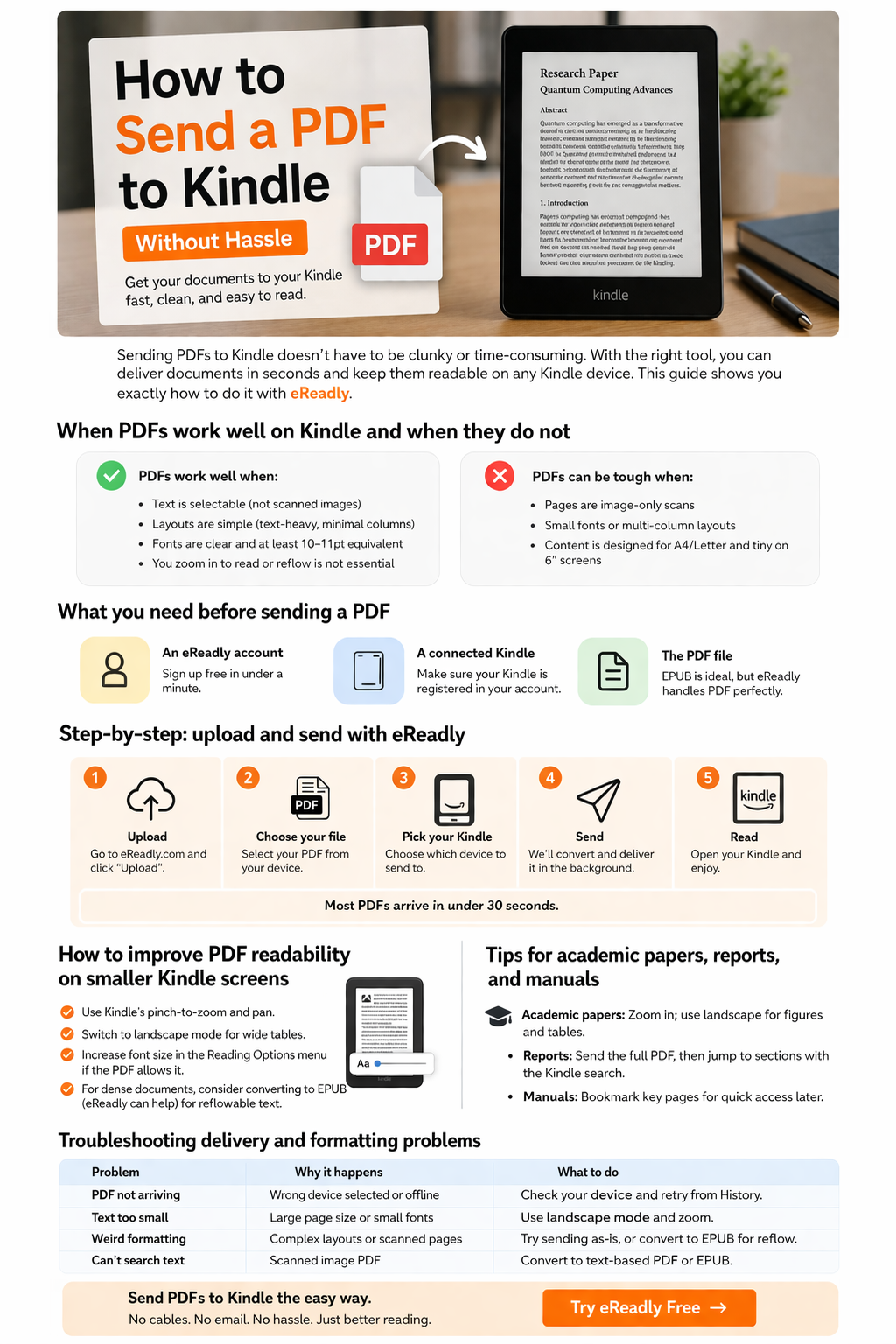
How to improve PDF readability on smaller Kindle screens
Even after you send a PDF to Kindle successfully, readability can still be the real issue. A few adjustments can make a big difference.
Use landscape mode
Wide pages often become much easier to read when you rotate the Kindle. This is especially helpful for papers with charts, side notes, or large headings.
Zoom in strategically
For dense pages, zooming in section by section can be more comfortable than trying to read the whole page at once.
Increase contrast and lighting
If you are reading on a Kindle with front light settings, adjusting brightness can reduce eye strain, especially with faint scans.
Start with better source files
A text-based PDF with clean fonts will nearly always feel better than a scanned photocopy. When possible, choose the cleaner version before sending.
Consider format conversion for text-heavy documents
If the document is mostly plain text, converting it to a reflowable format can improve the reading experience. For many readers, though, keeping the original PDF is still the simplest option when layout matters.
Tips for academic papers, reports, and manuals
Some PDF types are more common than others on Kindle, and each benefits from a slightly different approach.
Academic papers
Research papers often have two-column layouts, footnotes, graphs, and references packed tightly onto the page. On smaller Kindle screens, these are rarely ideal. Landscape mode helps, and so does zooming into one column at a time.
If you read papers often, it is worth sending only the ones you plan to finish or annotate mentally, rather than dumping an entire folder of unread PDFs onto the device.
Reports
Business reports and internal documents are usually easier to read than research papers, especially if they use larger fonts and simpler layouts. These are good candidates for Kindle reading during travel, commuting, or offline review.
Manuals
PDF manuals can work surprisingly well if you use them as reference documents. The best approach is to send only the manual you need, then use Kindle navigation and bookmarks to jump back to important sections.
Troubleshooting delivery and formatting problems
If your file does not show up or looks wrong after delivery, the issue is usually one of a few common problems.
The PDF did not arrive
Check that you selected the correct Kindle device. If you manage multiple devices, this is an easy mistake to make. With eReadly, your send history makes it easier to spot what happened and retry the delivery.
The text is too small
This is usually not a delivery problem. It is a page design problem. Try landscape mode, zooming, or a different version of the file with larger text.
The document looks strange
Complex layouts, embedded fonts, and scanned pages can all create awkward results on e-readers. If the content is important, test another copy of the PDF or consider a more readable source format.
Search does not work inside the PDF
That usually means the file is image-based rather than text-based. Scanned PDFs may look fine visually but behave poorly for search, highlighting, and navigation.
Why eReadly is the easiest way to send PDFs to Kindle
There are many ways to move files onto a Kindle. The problem is that most of them feel like work.
eReadly removes that friction. You upload the file, choose the device, and send it in a few clicks. It also helps if your reading workflow goes beyond PDFs. You can send articles, save reading from the web, upload ebooks, manage multiple devices, and keep a full history of what you have delivered.
For heavy readers, researchers, and anyone building a serious read-later system, that convenience adds up quickly.
Final thoughts
If you only send a PDF to Kindle once in a while, almost any method can get the job done. But if you do it regularly, the real goal is not just delivery. It is making the entire process fast, clean, and easy to repeat.
That is why a tool like eReadly is so useful. It takes the hassle out of file delivery and helps you keep your reading organized across devices, without interrupting your flow.
Want the easiest way to send PDF to Kindle?
Try eReadly and move your documents to your Kindle in just a few clicks, with less friction and a much better reading workflow overall.